> For the complete documentation index, see [llms.txt](https://guvidocs.gitbook.io/guvi-mern/llms.txt). Markdown versions of documentation pages are available by appending `.md` to page URLs; this page is available as [Markdown](https://guvidocs.gitbook.io/guvi-mern/docs/module-8-nodejs/working-around-with-apis-and-postman.md).
# Working around with API’s & Postman
APIs (Application Programming Interfaces) are essential for enabling communication between different software systems. They allow us to fetch data, send data, and perform various operations on remote servers. Postman, a popular API testing tool, helps developers test their API endpoints efficiently. In this detailed guide, we'll explore how to work with APIs in Node.js and how to use Postman to test these APIs.
### Table of Contents
1. Introduction to APIs and Postman
2. Setting Up Node.js Environment
3. Creating a Simple API with Express
4. Testing the API with Postman
5. Handling Different HTTP Methods
6. Working with Query Parameters and Request Bodies
7. Error Handling in APIs
8. Authentication in APIs
9. Advanced Postman Features
10. Conclusion
#### 1. Introduction to APIs and Postman
**What are APIs?**
APIs enable applications to interact with each other. They define methods and data formats for communication. For example, a weather API can provide current weather data to an application when called.
**What is Postman?**
Postman is a collaboration platform for API development. It simplifies each step of building an API and streamlines collaboration so you can create better APIs faster. With Postman, you can create and send HTTP requests, inspect responses, and automate testing.
#### 2. Setting Up Node.js Environment
**Installing Node.js and npm**
First, install Node.js from the [official website](https://nodejs.org/). This will also install npm (Node Package Manager), which you’ll use to manage dependencies.
**Creating a New Node.js Project**
1. Open your terminal.
2. Create a new directory for your project:
```sh
mkdir my-api-project
cd my-api-project
```
3. Initialize a new Node.js project:
```sh
npm init -y
```
This will create a `package.json` file.
**Installing Express**
Express is a minimal and flexible Node.js web application framework that provides a robust set of features for web and mobile applications.
```sh
npm install express
```
#### 3. Creating a Simple API with Express
**Setting Up Express**
Create a new file named `index.js`:
```javascript
const express = require('express');
const app = express();
const port = 3000;
app.get('/', (req, res) => {
res.send('Hello World!');
});
app.listen(port, () => {
console.log(`Example app listening at http://localhost:${port}`);
});
```
Run your application:
```sh
node index.js
```
Visit `http://localhost:3000` in your browser to see "Hello World!".
#### 4. Testing the API with Postman
**Installing Postman**
Download and install Postman from the [official website](https://www.postman.com/).
To create an account, click on the "Sign Up" button on the Postman website and follow the registration process.
Creating an account in POSTMAN
### How to make your first API Request
After installing Postman and creating an account (if desired), it's time to make your first API request. Open Postman and you'll be greeted with a clean and intuitive interface.
Follow these steps to make a simple GET request:
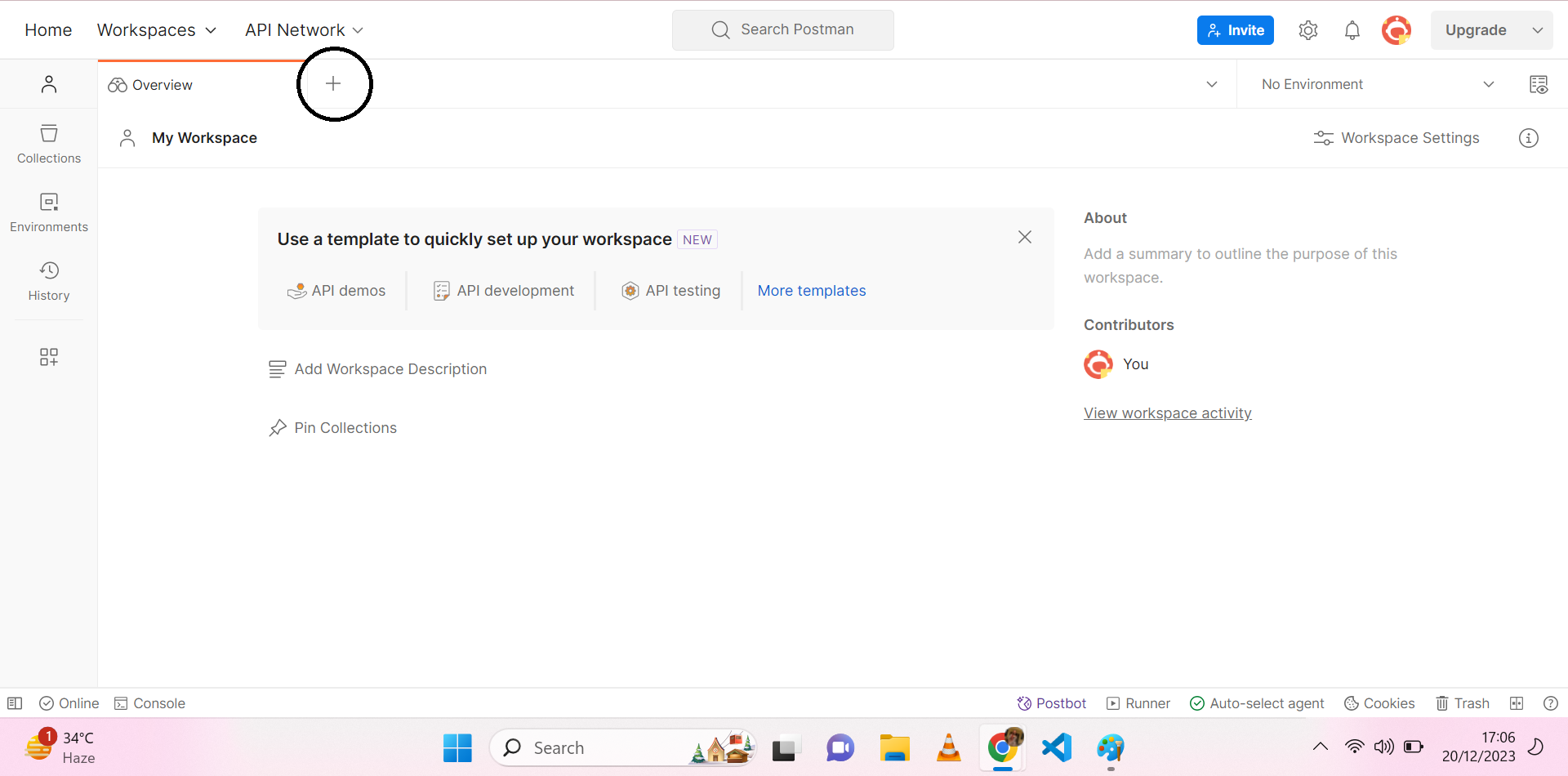
* Click the "+" button to create a new request tab
Creating a new request tab
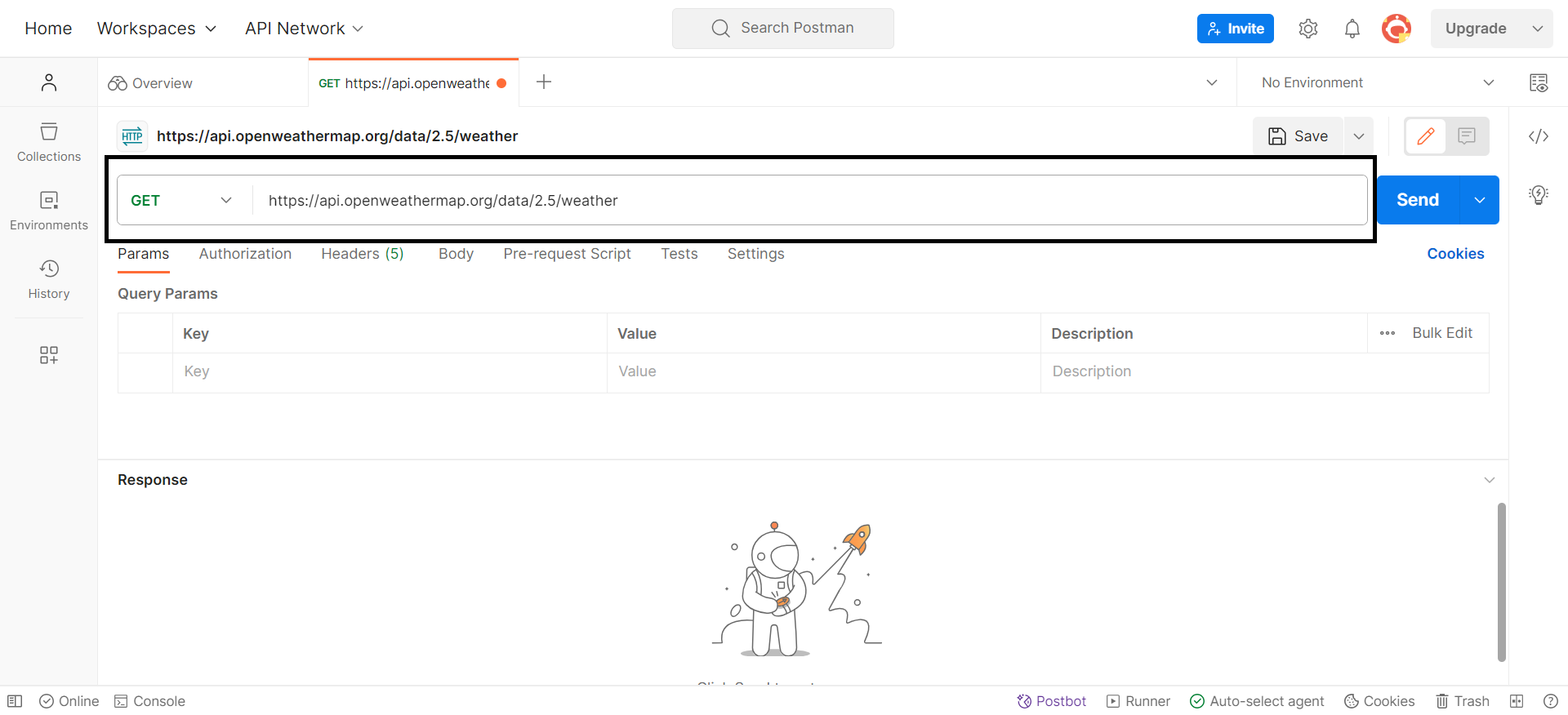
* Enter the API Endpoint: In the URL bar, enter the endpoint of the API you want to interact with. An example could be a weather API like `https://api.openweathermap.org/data/2.5/weather`.
Enter the API Endpoint
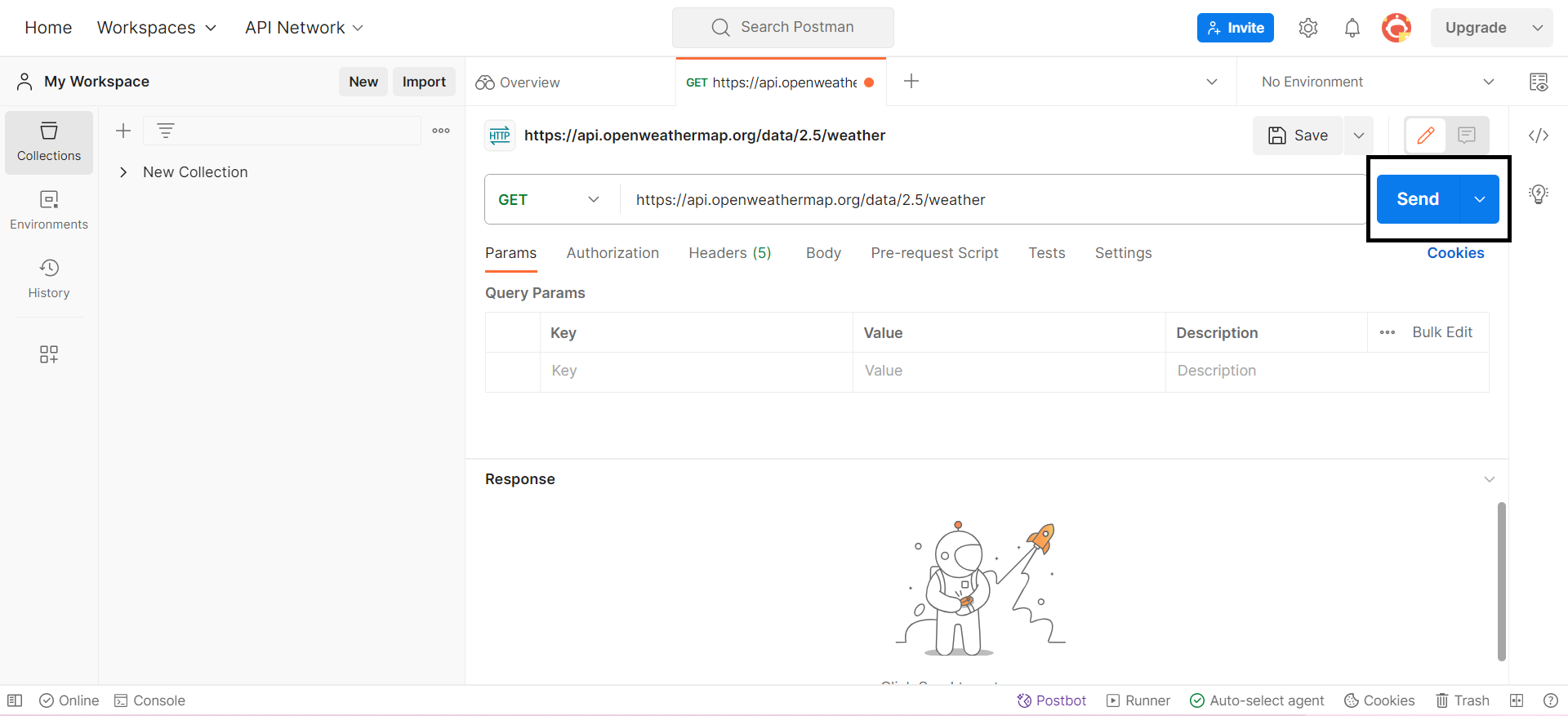
* Send the Request: Click on the "Send" button to execute the request. Postman will display the response from the API.
Send the Request
Congratulations! You've just made your first API request using Postman.
### How to work with HTTP Methods
HTTP methods, also known as HTTP verbs, define the actions that can be performed on a resource. Postman supports various HTTP methods, and each has a specific purpose.
* GET Requests: Retrieve data from the server.
* POST Requests: Submit data to create a new resource.
* PUT Requests: Update a resource or create a new one if it doesn't exist.
* DELETE Requests: Delete a resource on the server.
#### How to create GET Requests
GET requests are used to retrieve information from the server. In Postman, follow the steps mentioned earlier to make a GET request.
#### How to create POST Requests
POST requests are used to submit data to the server to create a new resource. Here's an example of making a POST request:
```plaintext
Request Type: POST
URL: https://api.example.com/users
Body:
{
"name": "John Doe",
"email": "john@example.com"
}
```
#### How to create PUT Requests
PUT requests are used to update a resource or create a new resource if it doesn't exist. An example PUT request:
```plaintext
Request Type: PUT
URL: https://api.example.com/users/1
Body:
{
"name": "Updated Name"
}
```
#### How to create DELETE Requests
DELETE requests are used to delete a resource on the server. Example:
```plaintext
Request Type: DELETE
URL: https://api.example.com/users/1
```
### How to handle Request Parameters
APIs often require additional information to process requests. Postman allows you to include parameters in different ways. They include:
* Query Parameters: Used for filtering or sorting data in the URL.
* Request Headers: Provide additional information about the request or the client.
* Request Body: Contains data for POST and PUT requests.
Query parameters are included in the URL and are used for filtering or sorting data. For example:
```plaintext
URL: https://api.example.com/products?category=electronics&price=100
```
#### What are Request Headers?
Headers provide additional information about the request or the client. In Postman, you can add headers in the Headers tab.
```plaintext
Key: Authorization
Value: Bearer YourAccessToken
```
#### What is the Request Body?
For POST and PUT requests, data is often sent in the request body. In Postman, switch to the Body tab and choose the data format (for example, JSON or form-data) before entering the data.
Postman supports various authentication methods to secure your API requests. Authentication is crucial for API security. Postman supports:
* API Keys: Include API keys in request headers.
* Bearer Tokens: Authenticate with tokens in the Authorization header.
If an API requires an API key for authentication, you can include it in the request headers. For example:
```plaintext
Key: X-API-Key
Value: YourAPIKey
```
#### How to authenticate using Bearer Tokens
For APIs using token-based authentication, you can include the token in the Authorization header.
```plaintext
Key: Authorization
Value: Bearer YourAccessToken
```
#### 10. Conclusion
Working with APIs in Node.js is a fundamental skill for any web developer. With Express, you can quickly set up and handle different types of API requests. Postman simplifies the process of testing and automating your API calls, making it an invaluable tool in your development workflow. By understanding and leveraging these tools, you can create robust, efficient, and secure APIs.